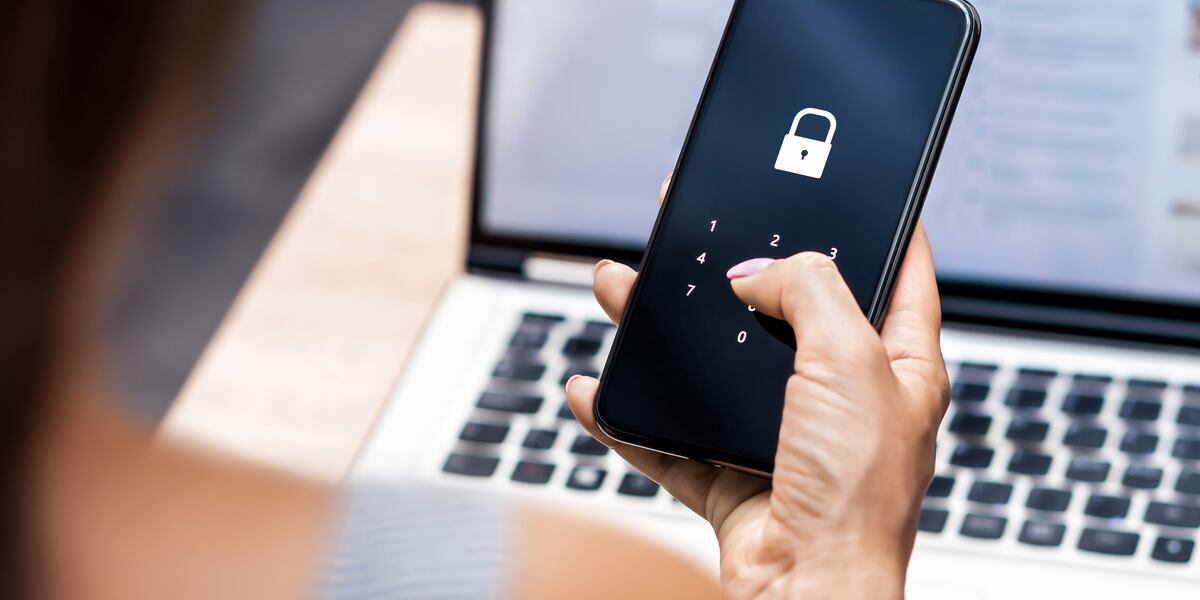
A smartphone’s default settings are designed to suit many users, but they may not provide the best balance of speed, battery life, privacy, and convenience for your routine. Small adjustments can reduce unnecessary background activity, make the interface easier to use, and help the phone remain responsive.
You do not need to change every advanced option. Focus on settings that solve a clear problem and test the phone after each adjustment.
Enable Automatic Brightness
The screen is one of the largest power consumers.
Automatic or adaptive brightness adjusts the display according to surrounding light. This prevents the phone from remaining unnecessarily bright indoors.
You can still make manual adjustments when needed.
Avoid using maximum brightness continuously. It increases battery drain and may contribute to heat during long sessions.
Shorten the Screen Timeout
Set the screen to turn off after 30 seconds or one minute of inactivity.
A shorter timeout saves battery and reduces the chance that someone can view an unattended unlocked phone.
Lock the phone manually when you finish using it.
Longer timeouts can be useful while following instructions or recipes, but they are rarely necessary throughout the day.
Use an Adaptive Refresh Rate
Phones with high refresh-rate displays may feel smoother but consume additional power.
Choose an adaptive setting that increases refresh rate when needed and lowers it during static content.
A standard rate may improve battery life on older or heavily used phones.
Useful smartphone performance guides can help users understand the tradeoff between display smoothness and power consumption.
Turn On Battery Optimization
Battery optimization limits unnecessary background activity.
Keep most applications optimized. Allow exceptions only for services that need immediate Notifications or continuous operation.
Messaging, navigation, fitness tracking, and security apps may require less restrictive settings.
Review battery usage periodically to identify applications that consume unusual power.
Configure Battery Saver Automatically
Set battery saver to activate at 20% or 30%.
This reduces visual effects, background synchronization, automatic downloads, and processing speed.
Use a stronger power-saving mode during travel or emergencies.
Test important communication applications after enabling restrictions to confirm that alerts still arrive.
Limit Background App Refresh
Not every application needs to update when closed.
Disable or restrict background activity for games, shopping platforms, photo editors, and services you rarely use.
Keep necessary access for communication, work, calendar, and security tools.
Practical mobile efficiency methods can help users control background processes without stopping useful features.
Review Location Permissions
Change location access from “Always” to “While Using” for most applications.
Disable precise location when an approximate area is sufficient.
Remove location access from apps that do not need it.
Navigation, transportation, weather, and delivery tools may require location, but many games and shopping apps do not.
Hide Sensitive Notifications
Configure the lock screen to hide message content, verification codes, email previews, and financial alerts.
You can still see which app sent a notification without revealing its details.
Set stricter controls for banking, email, healthcare, authentication, and private messaging apps.
This improves privacy without disabling useful alerts.
Reduce Unnecessary Notifications
Turn off promotional, suggestion, reminder, and engagement notifications.
Keep calls, direct messages, work alerts, calendar reminders, banking activity, and security warnings.
Fewer notifications reduce distractions, screen wake-ups, and battery use.
Review notification categories inside each application rather than disabling everything.
Enable Data Saver
Data saver limits background mobile data and automatic transfers.
Use it when your plan has a low monthly allowance or when traveling.
Allow exceptions for essential messaging and navigation apps.
Set cloud photo backups and large downloads to Wi-Fi only.
Configure App Updates Over Wi-Fi
Set the official app store to update applications over Wi-Fi.
Large updates can consume mobile data and slow the connection.
Do not postpone updates indefinitely. Install them regularly when a trusted network is available.
System security updates should also be kept current.
Use Private DNS or Trusted Security Settings
Some phones allow users to select a secure DNS provider or enable enhanced browsing protection.
Use only reputable services and avoid entering random addresses copied from untrusted websites.
Security settings should improve protection without breaking important applications.
Following secure smartphone configuration practices can help users make privacy changes without creating connectivity problems.
Enable Two-Step Verification
Protect important email, banking, social, and cloud accounts with an additional sign-in step.
Authenticator apps or security keys provide stronger protection than password-only access.
Save backup codes in a secure location separate from the phone.
Start with the main email account because it can reset many other passwords.
Turn On Device Location Services
Enable the official lost-device feature provided by the operating system.
Confirm that you can access the connected account from another device.
The service may allow you to locate, lock, display contact information on, or erase a missing phone.
Keep account recovery details updated.
Disable Automatic Wi-Fi Joining
Prevent the phone from automatically connecting to unfamiliar open networks.
Set it to ask before joining new Wi-Fi.
Confirm network names with staff in hotels, airports, and cafés.
Forget old public networks you no longer use.
Set Nearby Sharing to Contacts Only
Nearby file-sharing features can expose the device to unexpected transfer requests.
Choose contacts only, your devices, or temporarily visible.
Turn the feature off when it is not needed.
Change the visible phone name if it includes your full name.
Manage Bluetooth Visibility
Bluetooth should not remain discoverable unnecessarily.
Remove old paired devices and reject unexpected connection requests.
Turn it off when no accessory is connected if you want to reduce scanning and simplify security.
Check vehicle and wireless earbud connections when call audio behaves unexpectedly.
Use Dark Mode Where Helpful
Dark mode can reduce power consumption on phones with OLED screens.
It may also feel more comfortable in low-light environments.
Schedule it to activate in the evening or use it continuously according to preference.
The battery benefit may be smaller on LCD displays.
Reduce Motion and Animations
Older or budget smartphones may feel faster when visual effects are reduced.
Look for Reduce Motion, Remove Animations, or similar accessibility settings.
These options do not increase processor power, but they shorten visual transitions.
Avoid changing hidden developer settings unless you understand their purpose.
Set Up Storage Management
Enable official storage recommendations where available.
Review large files, duplicate photographs, downloads, offline entertainment, and unused apps each month.
Keep at least 10% to 20% of storage free.
Avoid third-party cleaner applications that promise unrealistic speed improvements.
Configure Cloud Backup Carefully
Back up photographs, contacts, documents, and necessary application data.
Set large uploads to Wi-Fi only.
Confirm that backup completes by checking files from another device.
Understand whether deleting a synchronized file from the phone also removes the online copy.
Review Microphone and Camera Access
Check which apps can use the microphone and camera.
Remove permission from applications that do not require them.
Pay attention to privacy indicators that appear when these features are active.
Reliable smartphone security resources can help users identify suspicious access and excessive permissions.
Enable Emergency Features
Set up emergency contacts, medical information, and emergency calling shortcuts.
Review how the feature works so it is not activated accidentally.
Keep information accurate and limited to what emergency responders genuinely need.
Test non-emergency setup screens without placing an actual emergency call.
Choose Default Applications Carefully
Review default browser, phone, messaging, assistant, keyboard, and payment apps.
Use trusted applications that receive regular updates.
Remove default access from software you no longer use.
A suspicious keyboard or browser can access significant personal information.
Schedule Do Not Disturb
Create a sleep or focus schedule that allows important contacts and alarms while muting low-priority notifications.
Use exceptions for family, emergency contacts, or repeated callers.
This improves concentration without forcing you to switch settings manually every day.
The best smartphone settings support the way you actually use the device. Control brightness, background activity, permissions, notifications, data usage, backups, and account security. Review settings every few months because updates and new applications can change permissions or introduce additional options.